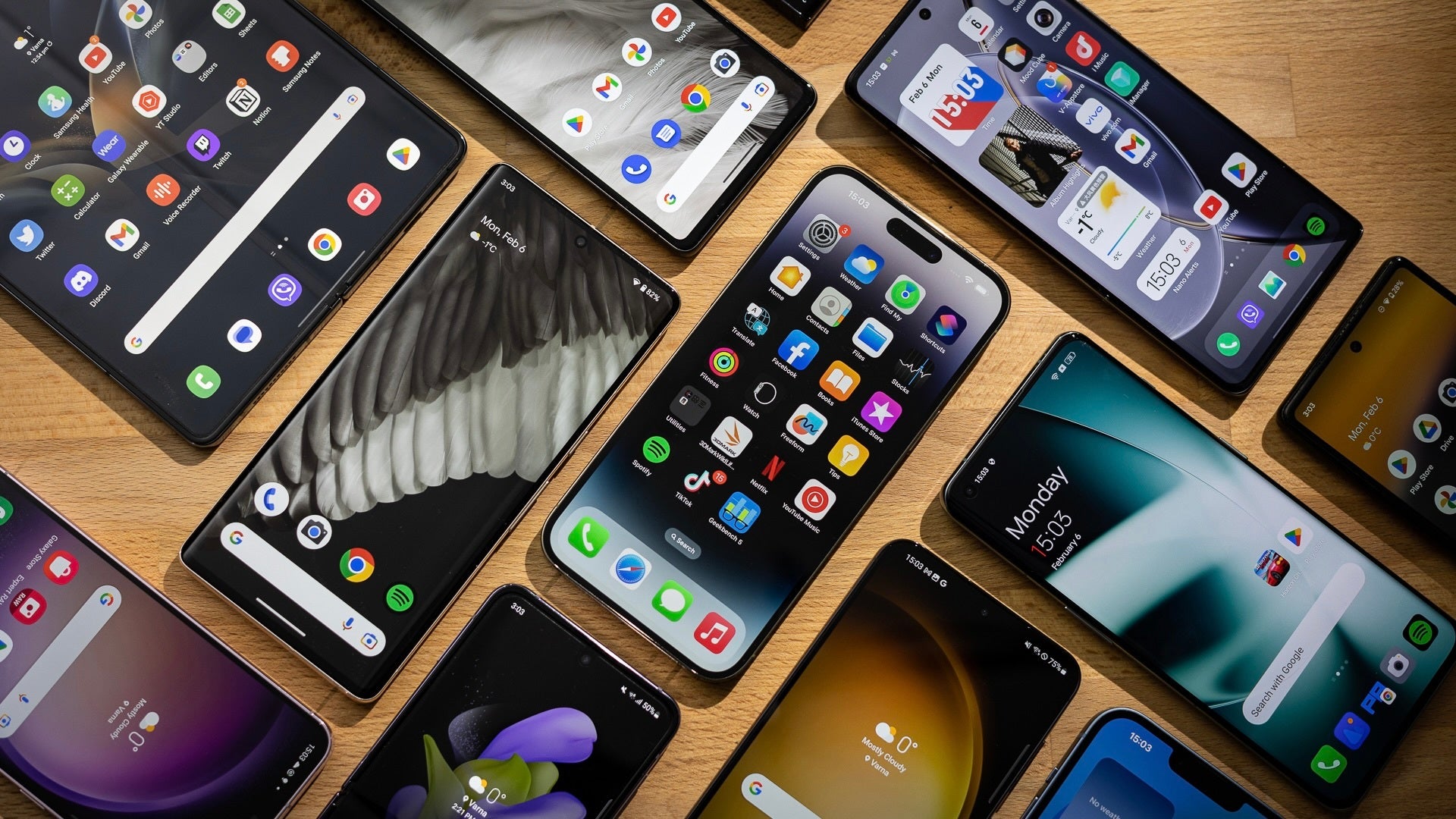
Your phone has many hidden phone features that can make your day much easier. Most people only use about ten percent of what their device can really do. You might be surprised to find that your phone can measure a room, read text out loud, or even alert you to the sound of a crying baby.
The short answer is that both iPhones and Android phones have deep menus filled with tools for accessibility, privacy, and speed. You can turn your phone into a document scanner, a level for hanging pictures, or a secret button just by tapping the back of the case. These tricks save time and help you get the most out of the money you spent on your device.
How to turn the back of your phone into a button
One of my favorite hidden phone features is called Back Tap on the iPhone. It lets you tap the apple logo on the back of your phone to do things like take a screenshot or turn on the flashlight. I use this when my hands are full and I cannot reach the side buttons easily. It feels like magic every time it works.
To set this up on an iPhone, go to Settings, then tap Accessibility. Look for the Touch menu and scroll all the way to the bottom to find Back Tap. You can choose what happens for a double tap and a triple tap. If you use an Android, you can find a similar tool called Quick Tap in the System settings on Pixel phones. It is a great way to open your camera in a split second when your kid or pet does something cute.
Use your keyboard as a trackpad for typing
We have all tried to fix a typo and ended up clicking the wrong spot ten times in a row. It is frustrating to get that tiny cursor exactly between two letters. There is a much better way to move that cursor around without blocking your view with your thumb. This works on almost every modern Smartphone you can buy today.
On an iPhone, just press and hold the Space bar until the letters on the keys vanish. Now you can slide your finger around like a mouse on a laptop to move the cursor. Android users can do the same thing by sliding their finger across the space bar on the Gboard app. My friend Sarah used this to edit a long email last week and said it saved her from a massive headache. It makes writing long messages feel much less like a chore.
Hidden phone features for better hearing
Your phone can listen for specific sounds and tell you when they happen. This is part of the Computer security and safety tools built into the software. If you are wearing headphones and someone knocks on your door, your phone can show you a notification. This is helpful for anyone who likes to work with loud music on.
On an iPhone, go to Settings, then Accessibility, and look for Sound Recognition. You can toggle on sounds like fire alarms, sirens, dogs barking, or even a running faucet. Android has a tool called Sound Notifications inside the Accessibility menu as well. I once left the sink running while watching a movie, and my phone saved me from a flooded kitchen by buzzing on my wrist. It is one of those features you hope you never need, but you are glad it is there.
How to scan documents without an extra app
You do not need to download a sketchy app with ads to scan a paper document. Many people do not realize their phone already has a professional scanner built right in. This tool makes the paper look flat and white, even if you take the photo at an angle in a dark room. It is perfect for sending signed forms or keeping track of receipts for taxes.
On an iPhone, open the Notes app and start a new note. Tap the Camera icon and select Scan Documents. On Android, open Google Drive and tap the plus sign, then pick Scan. These tools automatically find the edges of the paper and crop it for you. You can even use 6 AI Tools for Making Images You Can Use Today to help edit photos later, but for simple documents, the built-in scanner is the king of convenience.
What are the best hidden phone features for privacy?
Privacy is a big deal, and your phone has a few secrets to help you stay safe. Did you know you can hide specific photos so they do not show up when you are showing someone your vacation shots? We all have that one friend who starts swiping left and right when you show them a single picture. You can stop them from seeing things they should not see.
On an iPhone, select a photo, tap the three dots, and choose Hide. These photos go into a Hidden folder that stays locked with your face or fingerprint. On Android, you can use the Locked Folder feature inside the Google Photos app. It keeps your private stuff separate from your regular gallery. This is one of the many useful phone tips that helps you feel more in control of your digital life.
Cast your screen to any computer
Sometimes a phone screen is just too small to show a video or a presentation to a group. You can actually mirror your phone screen to a laptop or a smart TV without any wires. This is great for showing off travel photos or helping a family member learn how to use an app. It works over your home Wi-Fi and takes only a few seconds to start.
Swipe down from the top right of your iPhone and tap the Screen Mirroring icon, which looks like two rectangles. On Android, look for Cast or Smart View in your quick settings menu. You will see a list of devices nearby that can show your screen. Just make sure both devices are on the same network. I used this last night to show my parents a video of my new puppy on their big TV, and it worked perfectly.
Set a timer for your music or videos
If you like to fall asleep to music or a podcast, you might wake up with a dead battery because the audio played all night. There is a hidden timer that tells your phone to stop playing any media after a certain amount of time. It works for Spotify, YouTube, and almost any other app you use. This is much better than just letting the phone run until morning.
On an iPhone, open the Clock app and go to Timer. Tap When Timer Ends and scroll all the way to the bottom to find Stop Playing. Set your time and hit start. Android users can find a Sleep Timer directly inside many apps like Spotify or use the Digital Wellbeing settings to set a bedtime. It is a simple way to save your battery life and get better sleep at the same time.
Which one of these features are you going to try first? Go into your settings right now and turn on one thing that will make your life a little bit easier today.
Comments
Post a Comment